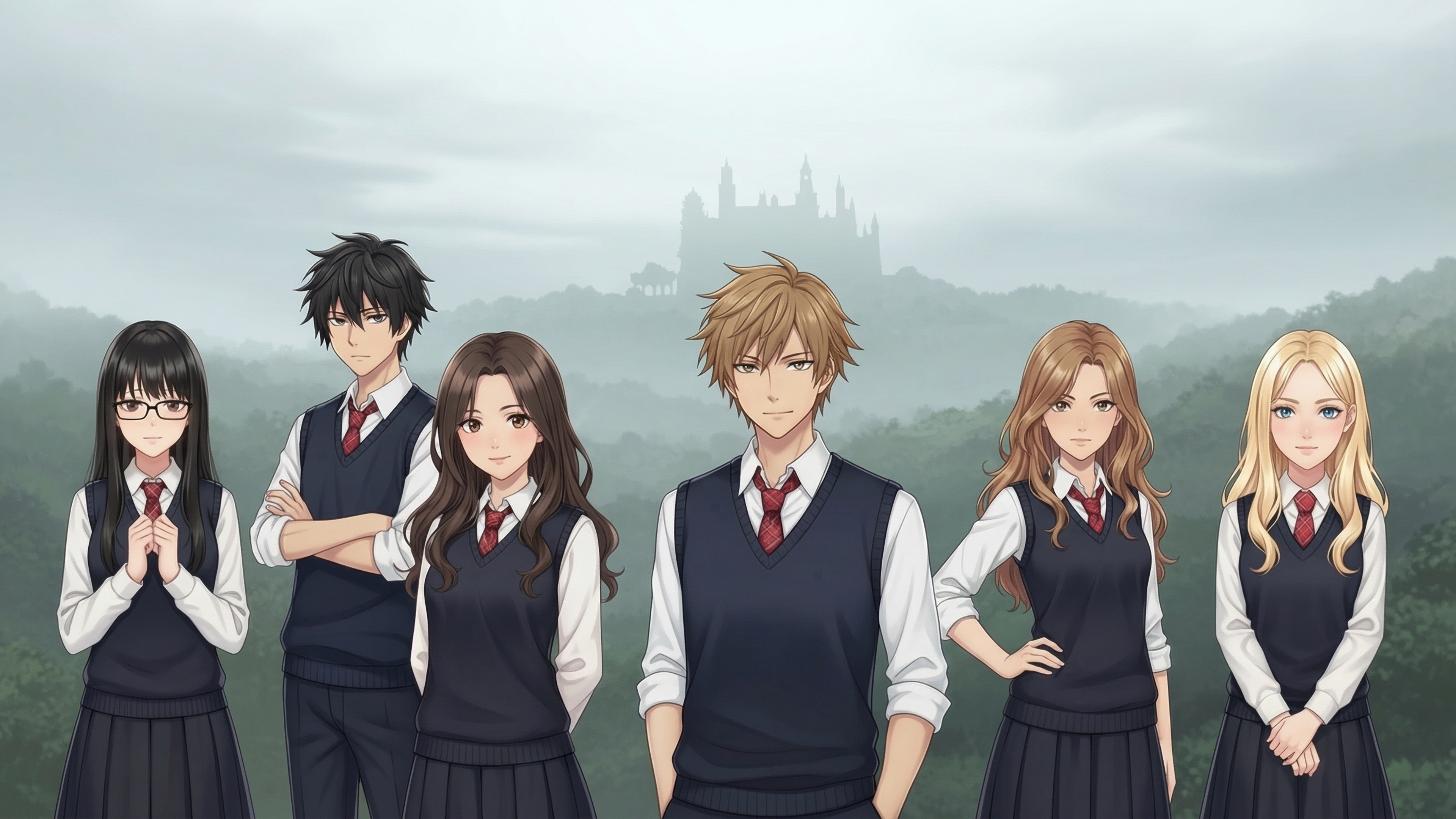
Assets are the visual and audio elements that bring your game to life — character sprites, background scenes, music tracks, and sound effects.
| Type | Format | Naming convention | Notes |
|---|---|---|---|
| Character sprites | PNG with transparency | character_expression (e.g. elena_happy) | Multiple expressions per character. Neutral is the fallback. |
| Locations | JPG or PNG, 1920x1080 recommended | location_variant (e.g. cafe_night) | Create time-of-day or weather variants for key locations. |
| Music | MP3 | Descriptive (e.g. tension, romantic_evening) | Tracks loop continuously. Should loop cleanly. |
| Sound effects | MP3, 1–5 seconds | Action-based (e.g. door_slam, phone_ring) | One-shot cues triggered by the AI during narration. |
The primary way to create visual assets. Open any image section in your workspace (Characters or Locations), click Generate, enter a text prompt, and review the result. Location images can queue multiple attempts at once, keep generating after the location modal is closed, and be cancelled while still running. Generation uses platform credits.
MDL does not ship a built-in art editor. If you need detailed editing, compositing, or audio production, use your normal external tools and treat MDL as the place where your hosted game assets are organized and generated where supported.
You can upload hosted image assets directly through the Characters, Locations, and presentation asset sections, and upload music through Songs. Each upload now opens a dedicated modal so you can drag and drop the file first, let MDL infer the starting ID and title from the filename, and only then confirm the final metadata.
Hosted image uploads now cover references, sprites, location images, and UI assets. Sound effects can be uploaded as audio, while visual special effects remain built-in toggles rather than uploadable assets.
Hosted game assets are cached for efficiency. To see changes immediately after uploading or editing an asset, open browser DevTools, go to the Network tab, and check Disable cache (only active while DevTools is open).
Your instructions should list available assets by their IDs so the runtime knows what can be used in each scene. Include a short description of what each asset represents.
Characters:
- elena (sprites: elena_happy, elena_sad, elena_surprised)
  Elena is the protagonist's best friend.
- marco (sprites: marco_neutral, marco_smiling, marco_serious)
  A mysterious stranger with unclear motives.

Locations:
- cafe_day, cafe_night: The local coffee shop
- park_morning, park_day: The central park
- protagonist_room: The player's bedroom

Music:
- calm: Gentle acoustic, everyday moments
- tension: Low strings, something is wrong
- romantic: Piano and soft stringsBegin with 3-5 locations, 2-4 visible subjects with 3 expressions each, and a handful of music tracks. Expand as your game develops.
AI-generated images tend to have consistent style when generated with similar prompts. Batch similar assets together in the same session for visual coherence.
